Update Your Casino Website Without Touching a Single Line of Code
Take full control of your casino website content without a developer. Edit pages, manage banners, arrange your game lobby, build landing pages, and publish across multiple languages, all from one standalone panel built for casino operators.
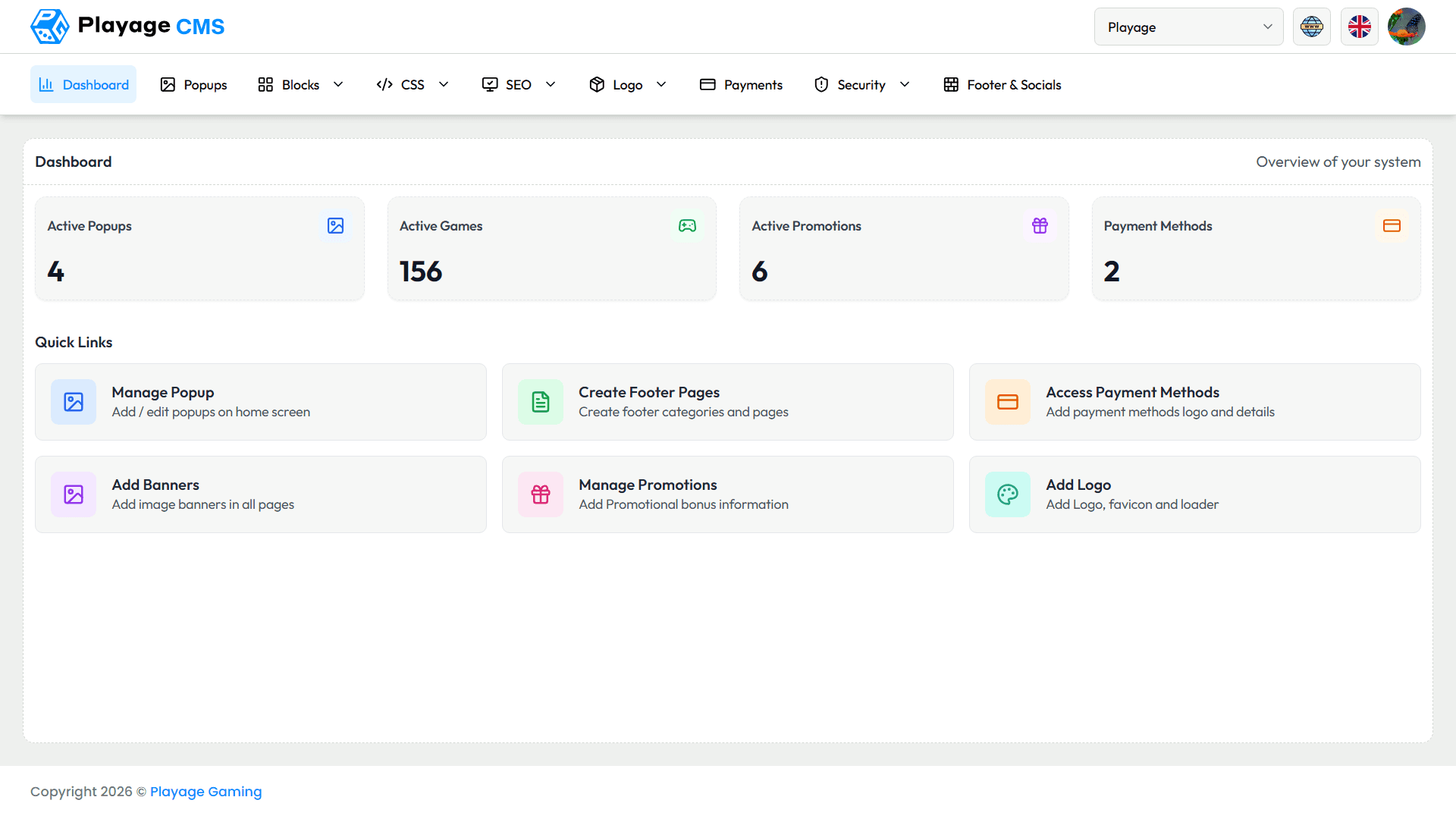
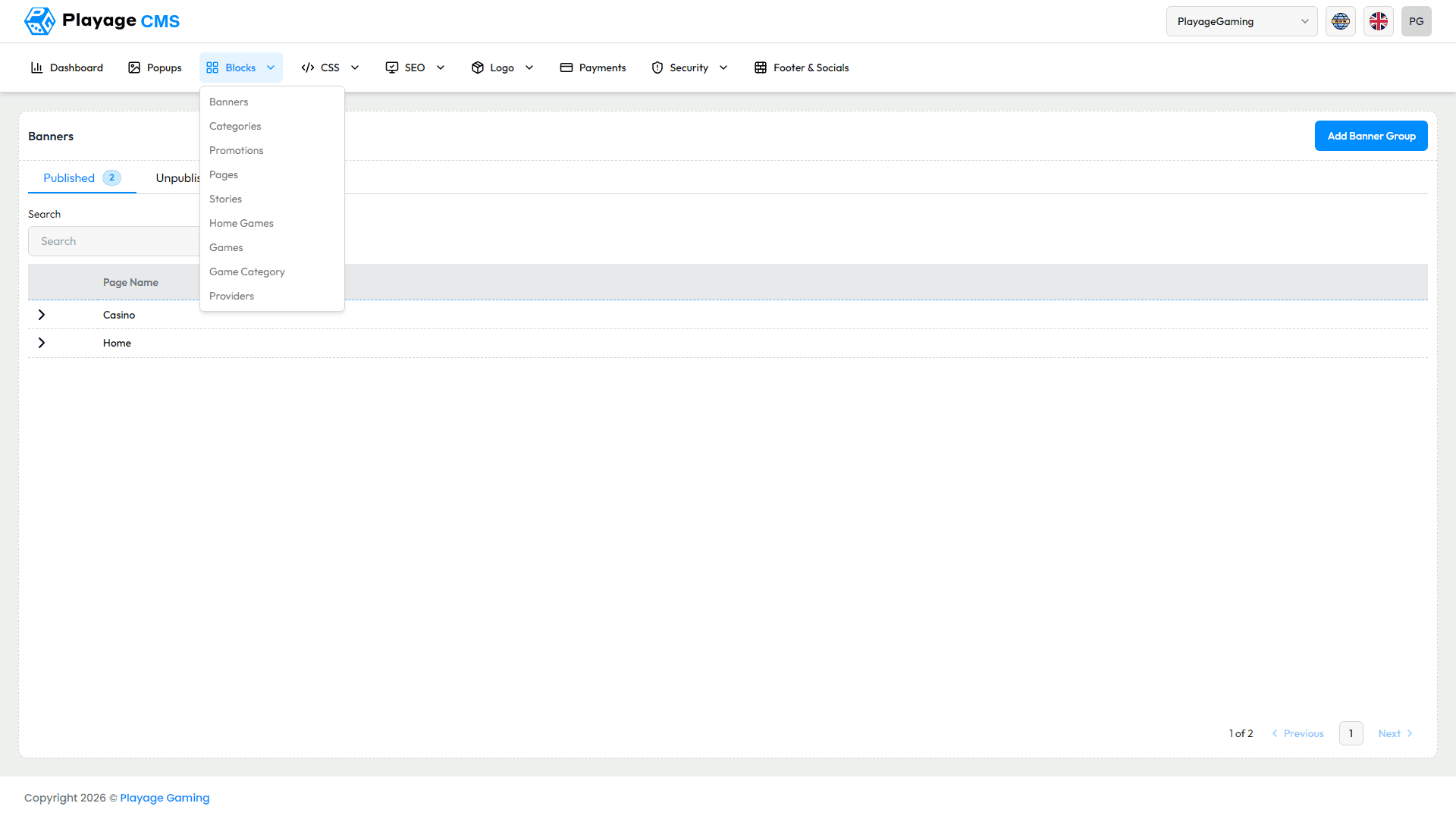
Your Casino Website, On Your Terms
- 8 content management modules in one panel
- Full multi-language support across all pages
- Live preview before publishing any change
- Zero developer dependency for standard content updates
Eight Tools. One Panel. Complete Website Control.
Page Content Editor
Edit any page on your website including the homepage, promotions page, and terms and conditions using a visual editor. Update text, images, and layout sections and preview exactly how the page looks to visitors before publishing.
Game Lobby Management
Create custom game categories, pin featured games, set display order manually or by performance data, and hide games from specific regions. Changes go live immediately or on a schedule you set.
Promotional Banner Management
Create, schedule, and manage banners across your entire website from one place. Set start and end dates, choose which pages each banner appears on, and target banners by player segment so VIP players see different offers from new visitors.
Multi-Language Content Management
Edit and publish content in every supported language from a single panel. A translation status tracker highlights which pages have been updated in one language but not yet in others so nothing gets missed.
SEO Settings
Set page titles, meta descriptions, and canonical URLs for every page directly in the CMS Panel. A built-in preview shows exactly how each page will appear in search results before you publish.
Media Library
Store, organise, and reuse all images, videos, and documents from a central library. Every file shows where it is currently used on your website so you never remove an asset that is live on a page.
Navigation and Menu Control
Add, reorder, and restructure your website navigation without a developer. Changes update across your entire website instantly.
Landing Page Builder
Build campaign landing pages using a drag-and-drop builder with pre-built section templates. Pages can be set to expire automatically at the end of a campaign without manual removal.
How Operators Use the CMS Panel Every Day
Launching a Weekend Promotion
From banner creation to scheduling in under 5 minutes.
1.
Navigate to Promotional Banners and click Add New Banner
2.
Upload your creative, set display pages, and choose your audience
3.
Set schedule: Friday 6pm to Sunday midnight
4.
Preview on desktop and mobile, then click Schedule
Adding a New Game Category
Organise your lobby without touching a developer.
1.
Navigate to Game Lobby Management and click Create New Category
2.
Search for games and drag them into the category or assign in bulk
3.
Set the display position in the lobby and click Publish
Publishing a Page in a New Language
Reach new markets with translated content instantly.
1.
Open the page in the Content Editor and select the target language
2.
Enter translated content into the same layout fields
3.
Update the SEO tab with the translated page title and meta description
4.
Preview and click Publish
Updating Homepage SEO Settings
Improve search visibility without a developer.
1.
Open the Homepage and click the SEO tab
2.
Update page title and meta description
3.
Check the search preview and click Save
Is the CMS Panel separate from BAS?
Yes. The CMS Panel is a standalone tool focused entirely on website content management. BAS handles your casino operations including players, payments, and reporting. Both are included with your Playage Gaming solution and accessible from separate logins.